> ## Documentation Index
> Fetch the complete documentation index at: https://docs.draftio.cn/llms.txt
> Use this file to discover all available pages before exploring further.
# 左侧工具栏
> 了解创作画布左侧工具栏中的上传、评论、角度编辑、文本和模板库。
# 左侧工具栏
左侧工具栏聚合了画布中最常用的创作入口。
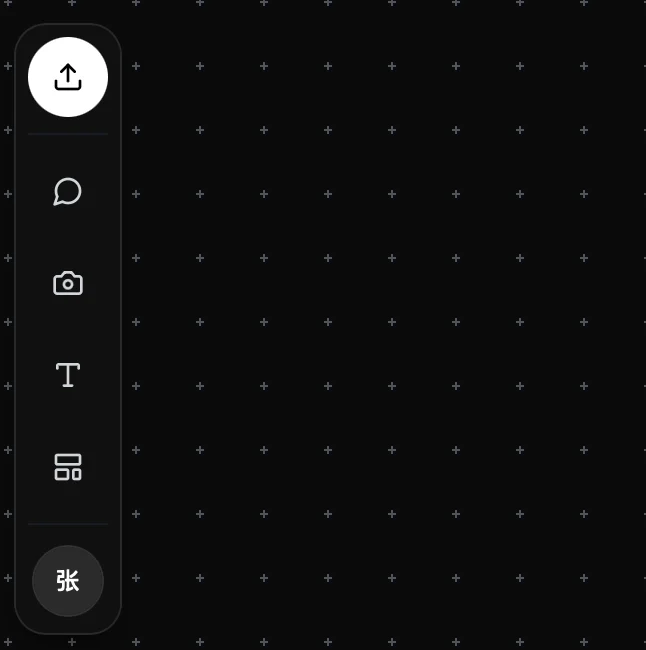 ## 上传图片
用于从你的设备导入图片到画布。
使用方式:
1. 点击上传入口
2. 选择设备中的图片,或将图片拖拽到画布
3. 图片会作为卡片出现在画布中
支持常见图片格式,例如 JPG、PNG。
## 角度编辑
角度编辑可以基于选中的图片创建多角度图像,并尽量保持主体与背景一致。
使用方式:
1. 选中需要编辑的图片
2. 打开角度编辑入口
3. 切换角度或输入提示词
4. 生成新的角度结果
## 文本
用于在画布中创建文本内容,记录文案、说明或创作备注。
使用方式:
1. 点击文本工具
2. 在画布上点击放置文本框
3. 输入内容
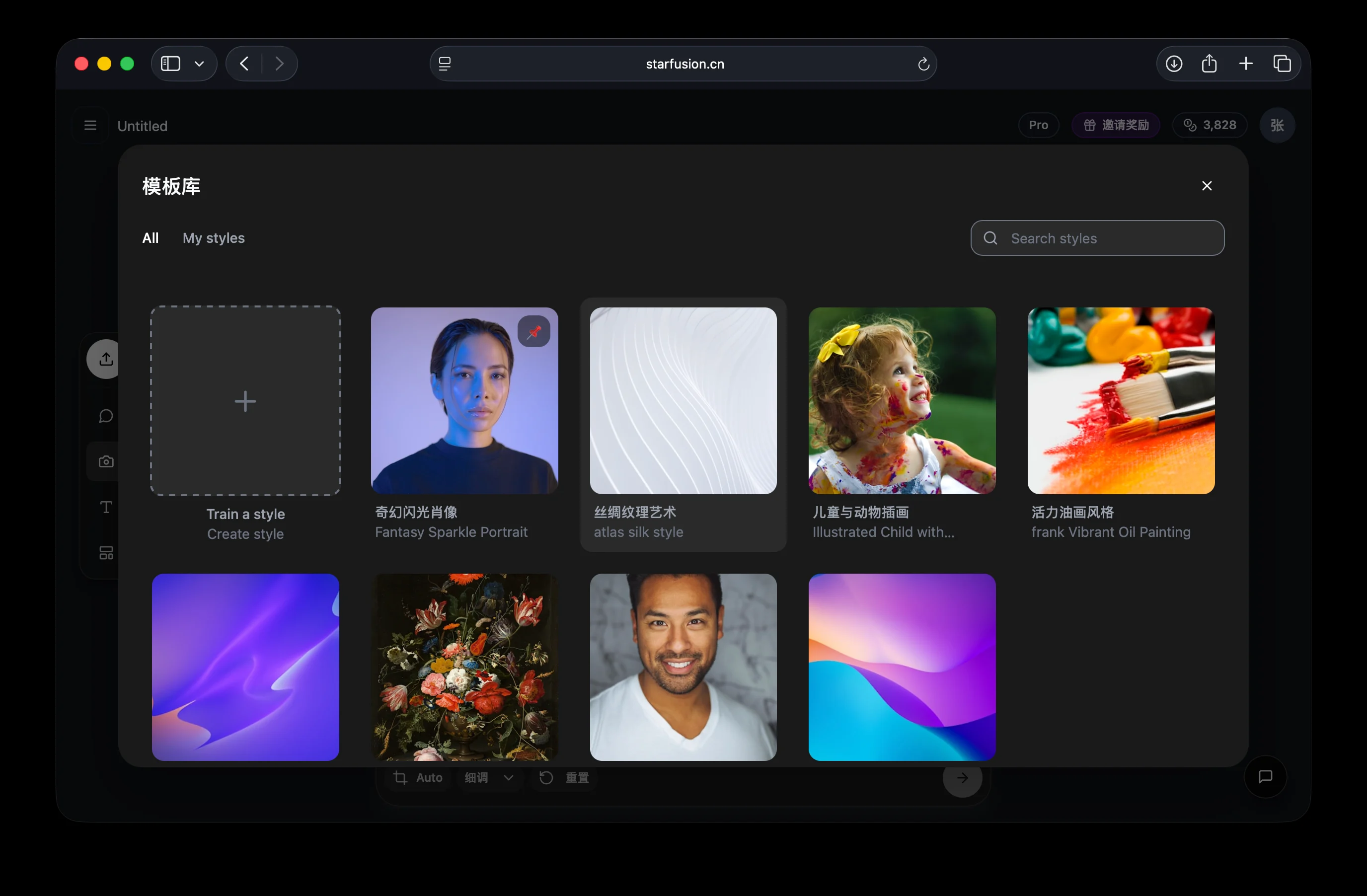
## 模板库
模板库用于浏览预设模板和参考场景,帮助你更快开始创作。
## 上传图片
用于从你的设备导入图片到画布。
使用方式:
1. 点击上传入口
2. 选择设备中的图片,或将图片拖拽到画布
3. 图片会作为卡片出现在画布中
支持常见图片格式,例如 JPG、PNG。
## 角度编辑
角度编辑可以基于选中的图片创建多角度图像,并尽量保持主体与背景一致。
使用方式:
1. 选中需要编辑的图片
2. 打开角度编辑入口
3. 切换角度或输入提示词
4. 生成新的角度结果
## 文本
用于在画布中创建文本内容,记录文案、说明或创作备注。
使用方式:
1. 点击文本工具
2. 在画布上点击放置文本框
3. 输入内容
## 模板库
模板库用于浏览预设模板和参考场景,帮助你更快开始创作。
 ## 个人中心
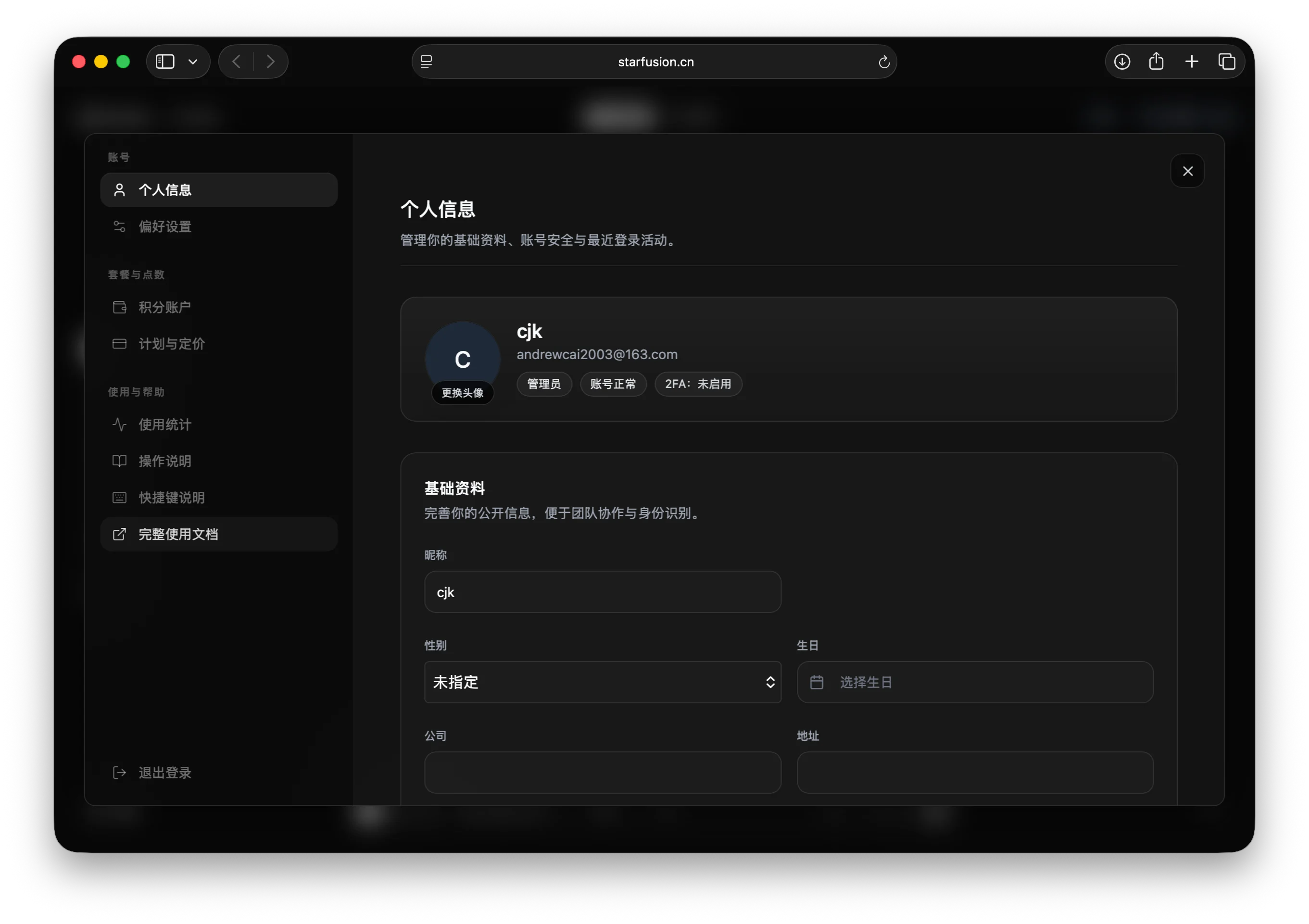 * 查看个人信息、[查看偏好设置](./canvas/preferences)、[查看积分与定价](./billing/credits-and-pricing)、查看使用统计、查看操作说明、[查看快捷键](./canvas/shortcuts)、查看完整使用文档、退出登录。